Which cross do you need?
| Character | Name | Word Unicode code |
|---|---|---|
| Latin cross | 271D | |
| Dagger | 2020 | |
| Ballot X | 2717 | |
| Multiplication sign | 00D7 | |
| Turned dagger | 2E38 |
Choose by the job, not just the shape
- Faith or a profile: start with ✝. Use 271D in Word, or copy the character for a message or bio.
- A footnote: choose † or ‡. A pasted mark is plain text; see the dagger guide for a note example and when to use a document editor’s footnote feature.
- A negative answer: choose ✗. For multiplication or dimensions, use × instead; the letter x is a different character.
- An inverted shape: choose ⸸ only if the turned dagger suits your use. Read the lookalike explanation before treating it as a religious symbol.
Is there an ASCII code for a cross?
The Latin cross ✝ and dagger † are not ASCII characters. Basic ASCII covers 128 values, U+0000 through U+007F. It includes the plus sign + and the letter x, but neither is a substitute for every cross-shaped character.
When a field accepts only ASCII, use an allowed alternative that keeps your meaning: for example, the word “no” in a checklist. A font change cannot make ✝ valid in an ASCII-only field.
Unicode, HTML and Alt codes are different inputs
U+271D identifies ✝ in Unicode. ✝ represents it in HTML source. Word can convert 271D with Alt + X. Typing an HTML reference in an ordinary message usually leaves the code visible; holding Alt with the decimal value is not a universal way to enter the symbol.
For a browser text field or phone, copy the actual character from the table above. For a document, follow the method for your application below.
In Microsoft Word for Windows
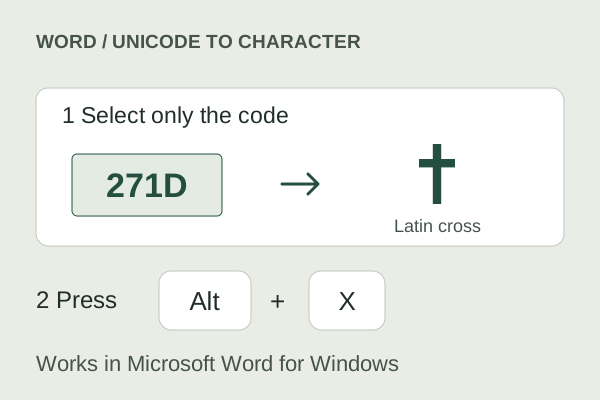
- Type the hexadecimal code from the table, such as
271Dfor ✝. - Select just the code, especially if there are letters or numbers immediately before it.
- Press Alt + X to convert the code into the character.
You can also use Insert → Symbol → More Symbols. Choose a font that contains the character, and select Unicode (hex) when entering its code. Word’s Alt+X method is not a universal shortcut in browsers, Excel, or other apps.
On Windows, outside Word
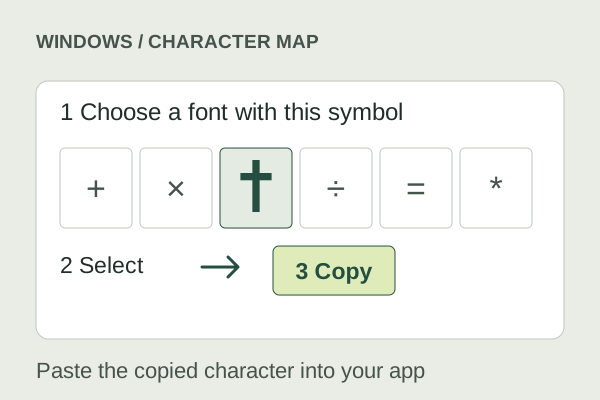
Copying a symbol from the collection works in applications that accept that character. For another built-in method, search the Start menu for Character Map, choose a suitable font, select the symbol, and copy it into your document.
On a conventional Windows configuration with a numeric keypad, holding Alt while entering 0134 on the keypad commonly produces †. This is a dagger, not ✝. Results depend on the application, input configuration, and keypad support.
A code point is not automatically an Alt shortcut. U+271D is the Unicode code for ✝. Its decimal value, 10013, should not be advertised as a universal “Alt+10013” shortcut. Use Word’s hexadecimal method or Character Map instead.
On a Mac
With a U.S. keyboard layout, Option + T produces †. Other keyboard layouts can behave differently. This shortcut does not produce the Latin cross ✝.
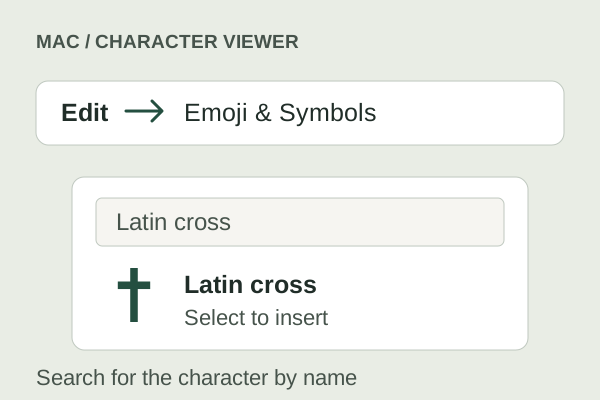
For other cross characters, open Edit → Emoji & Symbols in a supporting application to access Character Viewer. Search for the character’s name, such as “Latin cross” or “dagger,” and insert it. If the compact emoji picker does not show what you need, expand the viewer or copy the character from this site.
On iPhone and Android
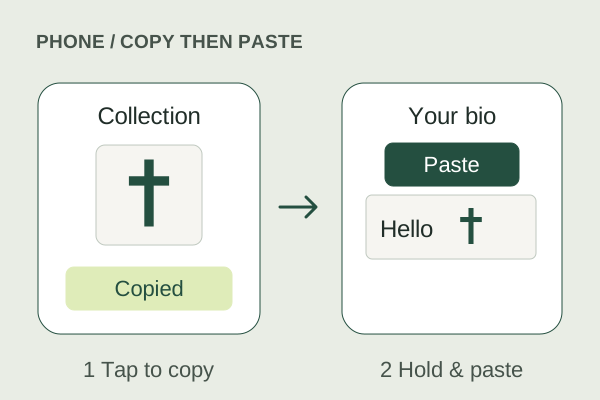
- Open the cross symbol collection and tap the character you want.
- Wait for the copied confirmation.
- Open your message, bio, or document. Touch and hold in the text field, then choose Paste.
Your emoji keyboard may also include ✝️ or ☦️. Emoji artwork is not the same as a plain-text cross. For a simple character that follows the surrounding text, try † or the explicitly labelled Latin cross · text option in our collection.
Why does it look different after pasting?
It turned into a colorful emoji
Some cross characters support both text and emoji presentation. Unicode defines U+FE0E to request text presentation and U+FE0F to request emoji presentation for supported sequences. The collection includes labelled alternatives. A presentation request is still dependent on support in the destination app.
It became an empty square
The font or system may not have a glyph for that character. Try another font if the app lets you, or choose a more widely available alternative such as †. Updating your device may improve character support, but it cannot override a platform’s restrictions on username fields.
The color, size, or rotation disappeared
Plain-text copying transfers the character sequence, not this website’s styling. Your destination chooses the font, size, and color. For an exact visual design, you need an image or formatting controls in the destination app.
The platform rejected my username
That is a field restriction, not necessarily a copy error. Try the display-name or bio field if appropriate. We do not remove platform restrictions, and a successful copy does not mean the character is permitted everywhere.
Copying failed in my browser
Clipboard access can be unavailable or denied. When automatic copying fails here, a manual-copy dialog shows the exact text. Select it and use your device’s Copy command. With JavaScript disabled, you can also select the visible characters directly.